VPN Bot Customization
The customization section lets you change background images at all stages of the bot, as well as edit the text in some of them. In the future, the number of screens with editable text will be expanded
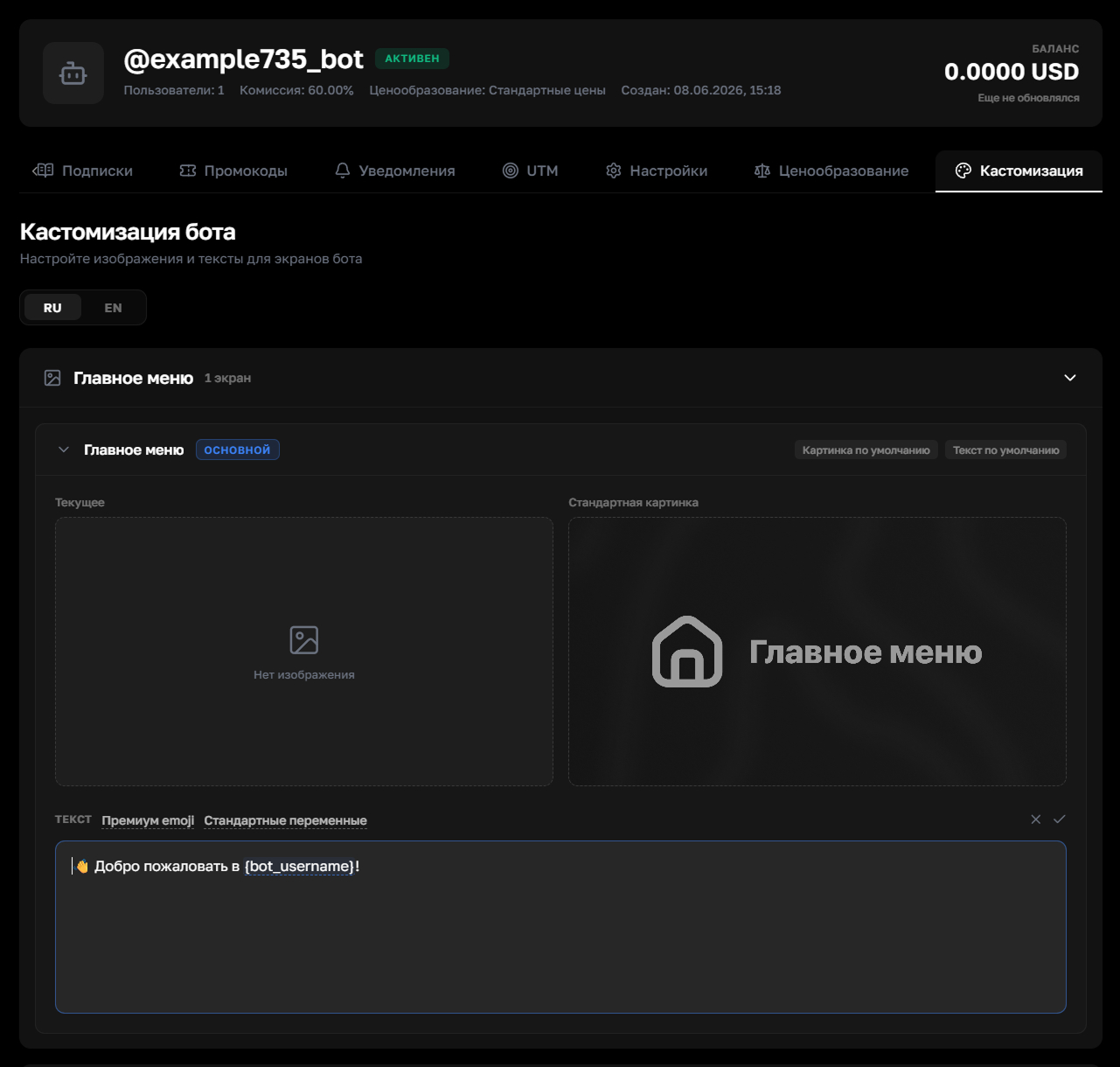
Text fields support premium emojis and system variables — for example, automatic substitution of the bot's or user's name
Step 1. Open the bot
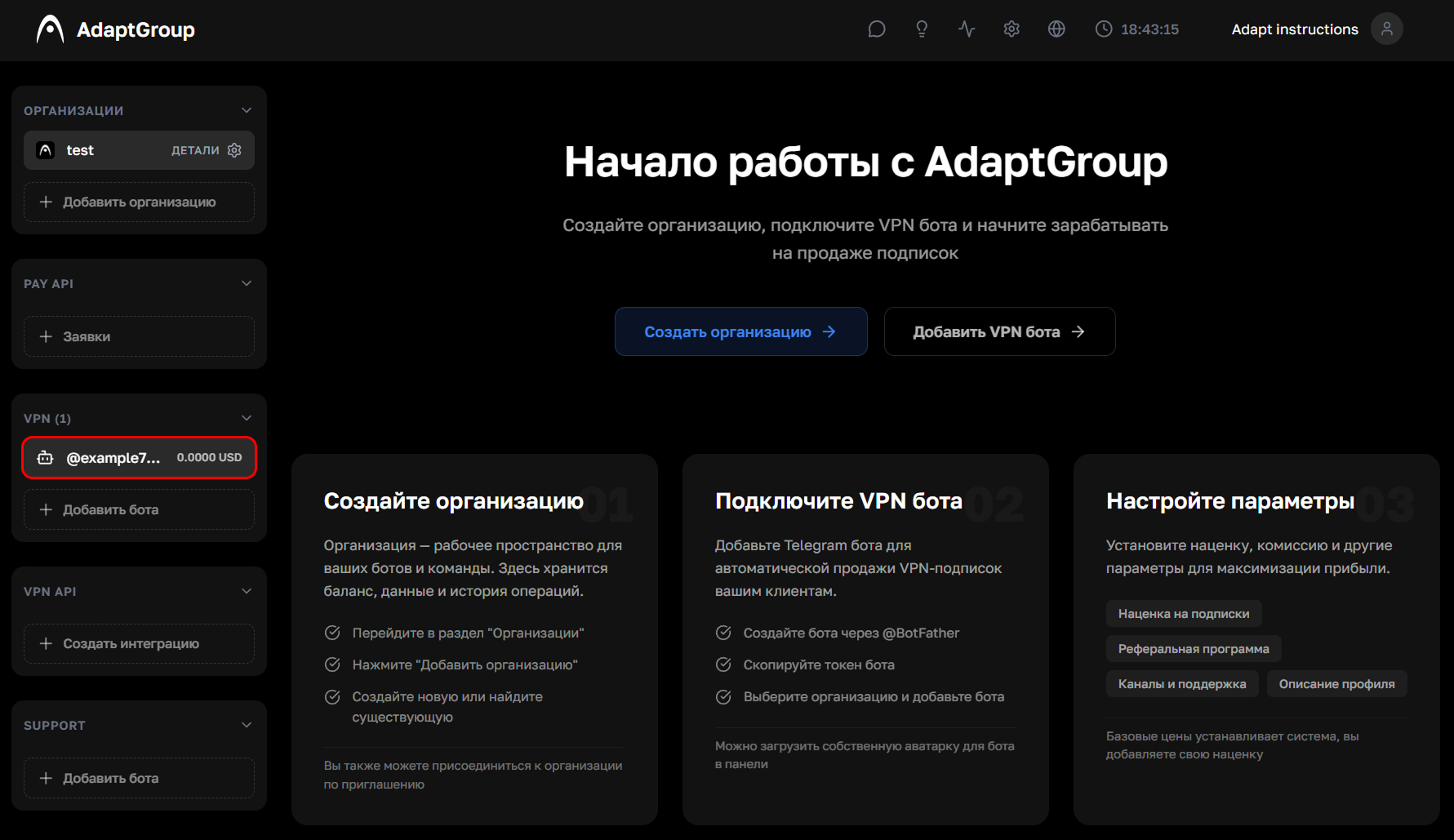
In the left sidebar, in the VPN section, click on the bot you need
Show screenshot
Step 2. Go to the "Customization" section
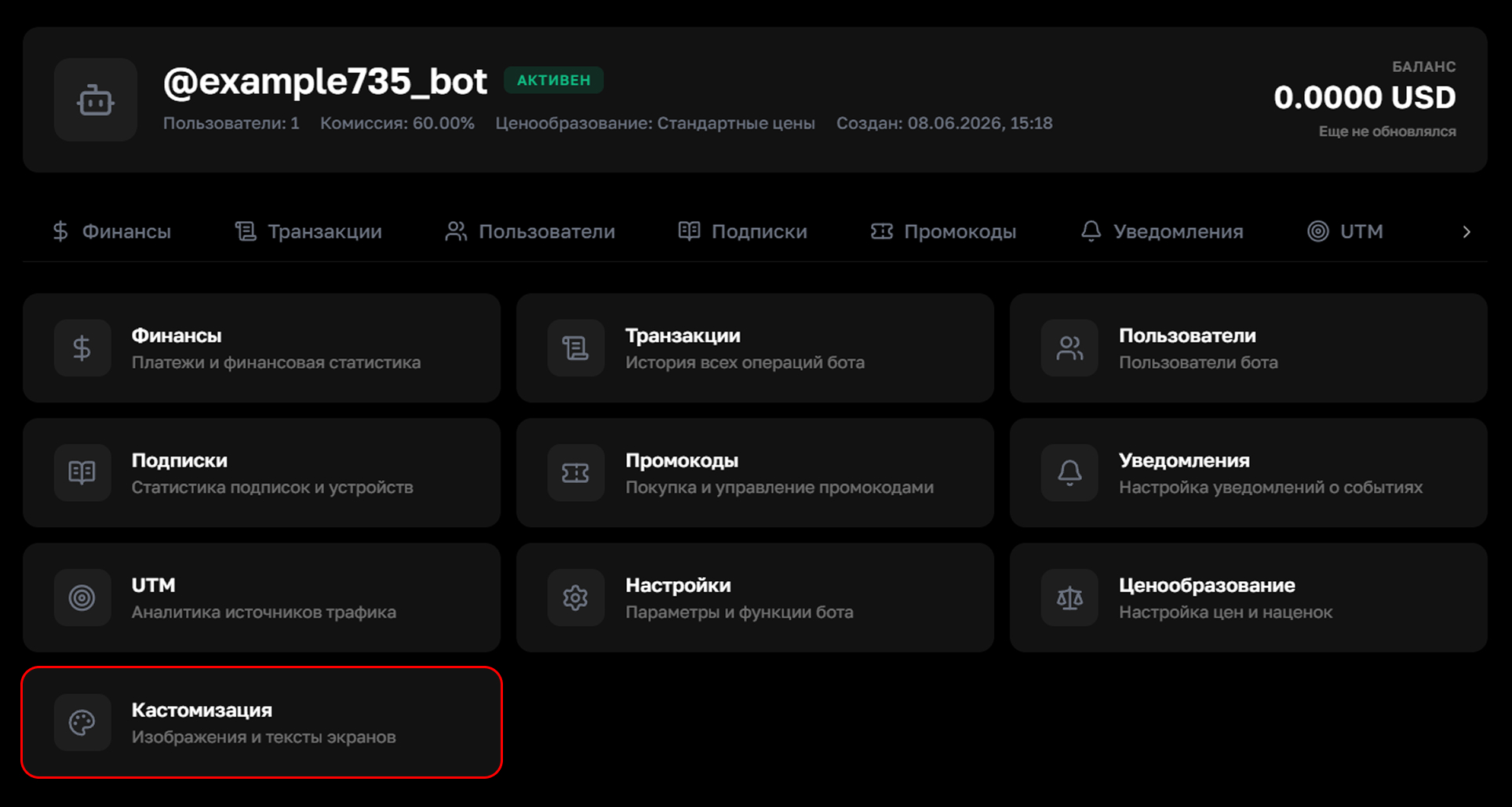
On the bot's page, click on the "Customization" tile
Show screenshot
Step 3. Edit the screen
Choose the language — Russian or English. Each section has an image upload field, and some screens also have a text field. Premium emojis and variables can be inserted into text fields
Show screenshot
Step 4. Choose the section you need
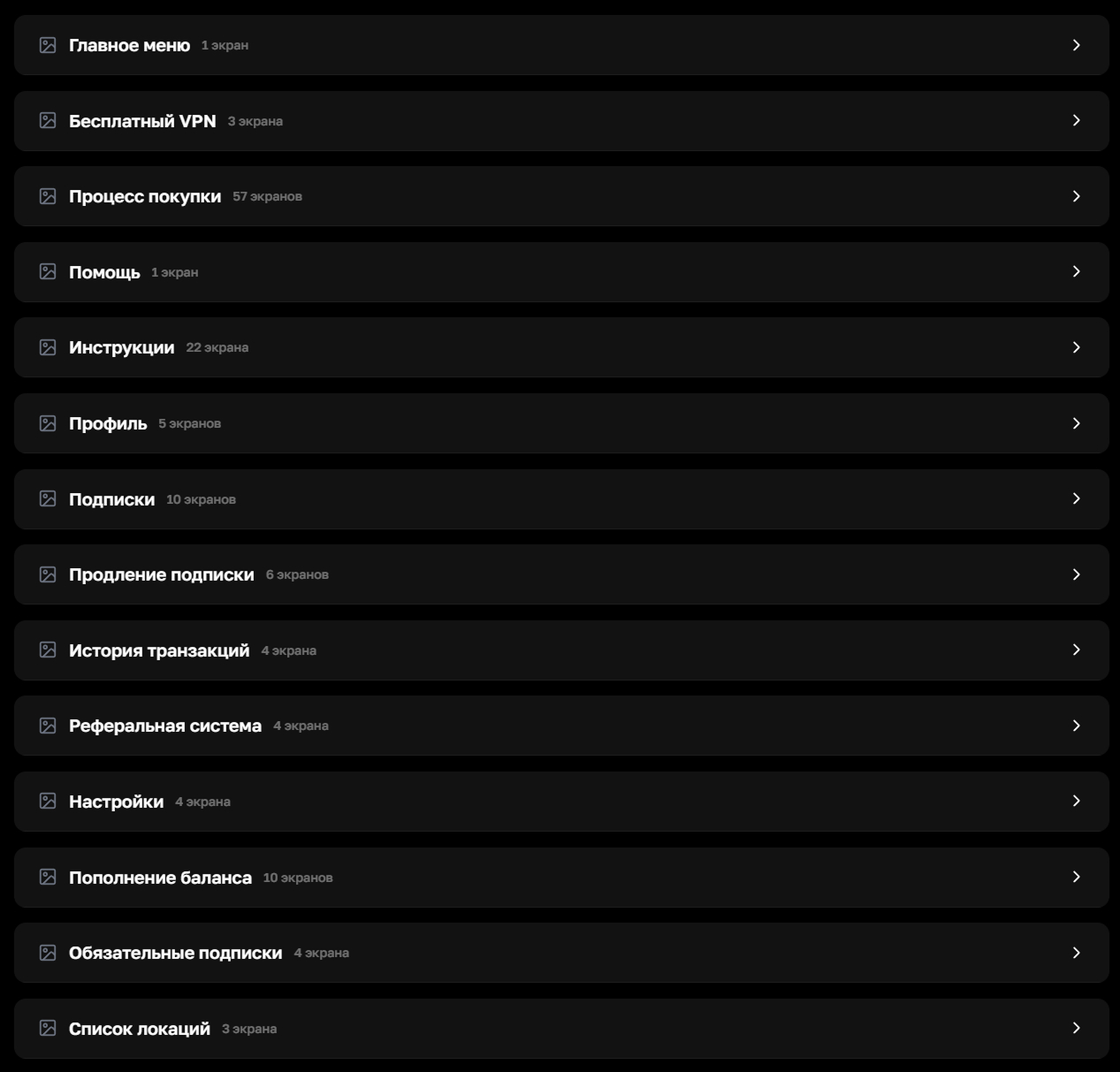
All available customization sections are displayed as a list. The number of screens within each one is shown. These include the main menu, subscription purchase screens, user profile, transaction history, referral system, server list and others
Show screenshot