Creating and Using Support Bots
A Support bot lets you receive messages from users in Telegram and reply to them from the panel. All file types and voice messages are supported
Step 1. Create a bot in Telegram
Open Telegram and find @BotFather. Send the /newbot command, come up with a name and username for the bot. After creating it, copy the token
Step 2. Add the bot to the control panel
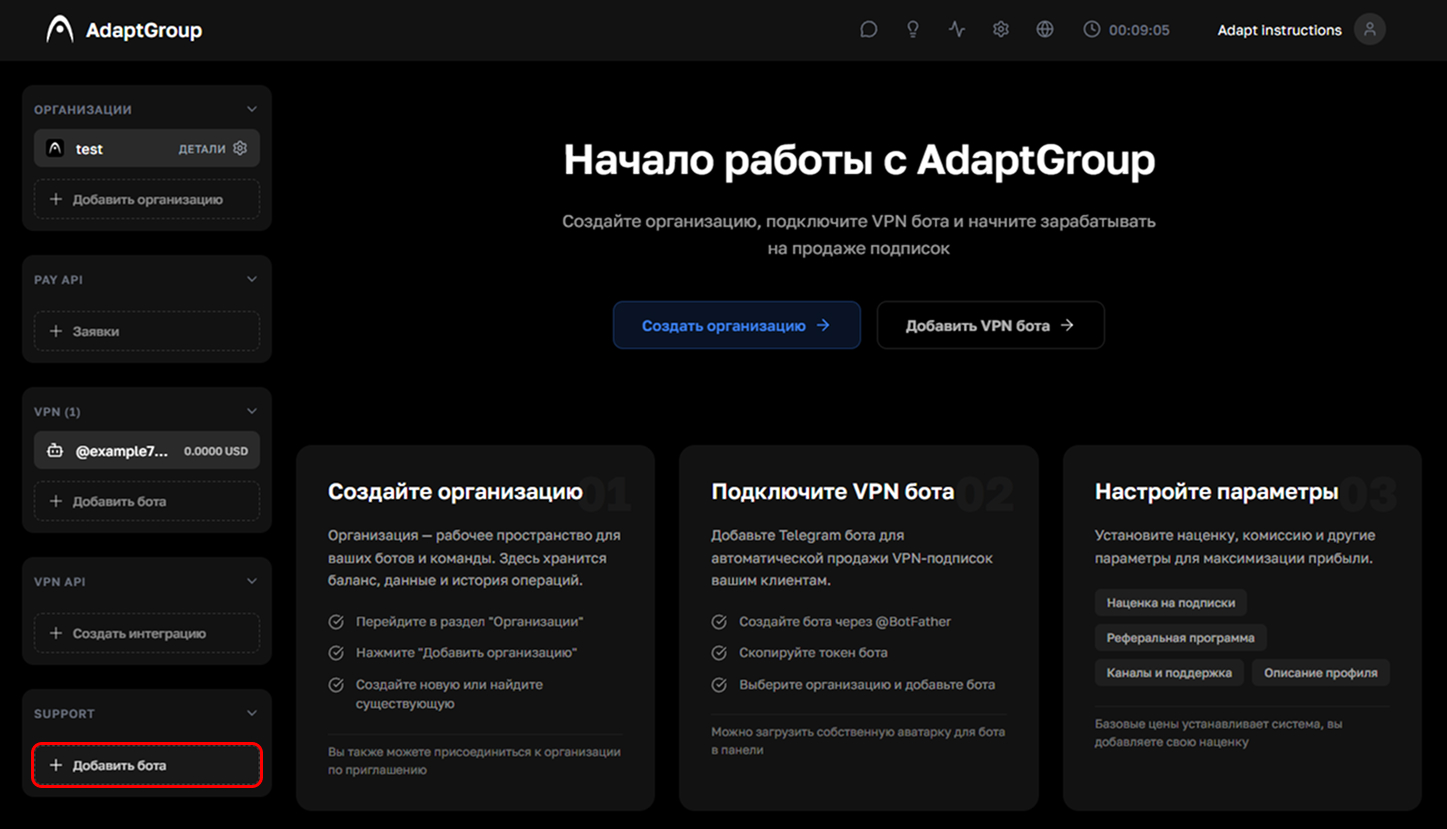
In the left sidebar, in the Support section, click "+ Add Bot"
Show screenshot
Step 3. Enter the token
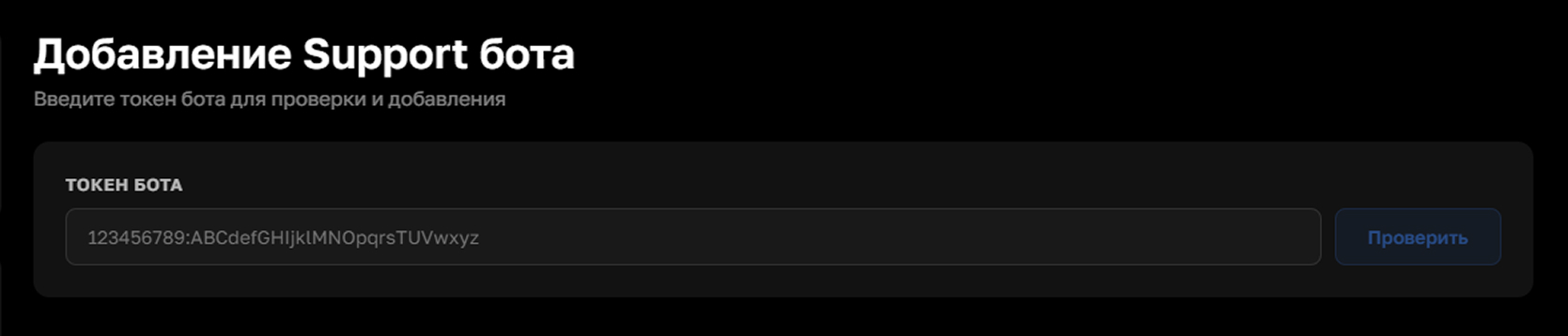
Paste the token into the "Bot Token" field and click "Check"
Show screenshot
Step 4. Confirm the addition
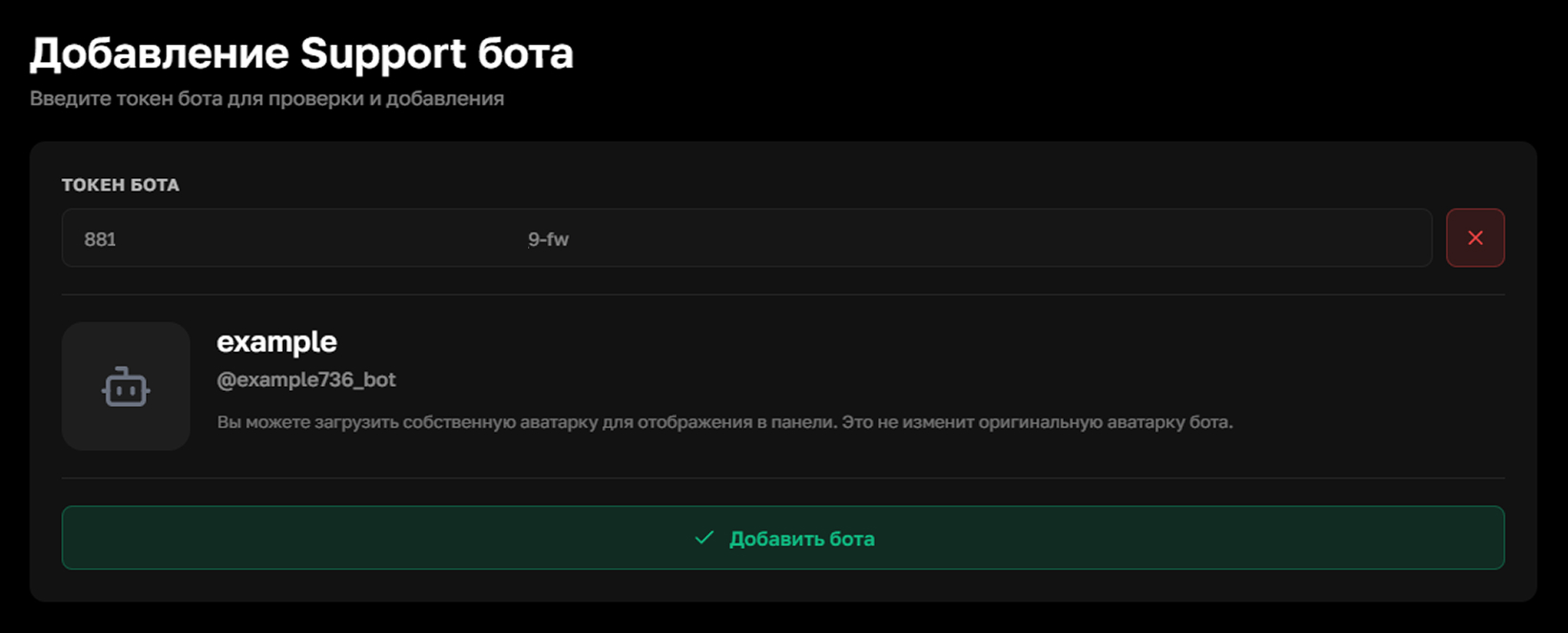
If the token is correct, the system will recognize the bot. If you want, you can upload your own avatar for display in the panel — this won't change the bot's original avatar. Click "Add Bot"
Show screenshot
Step 5. Configure the start screen
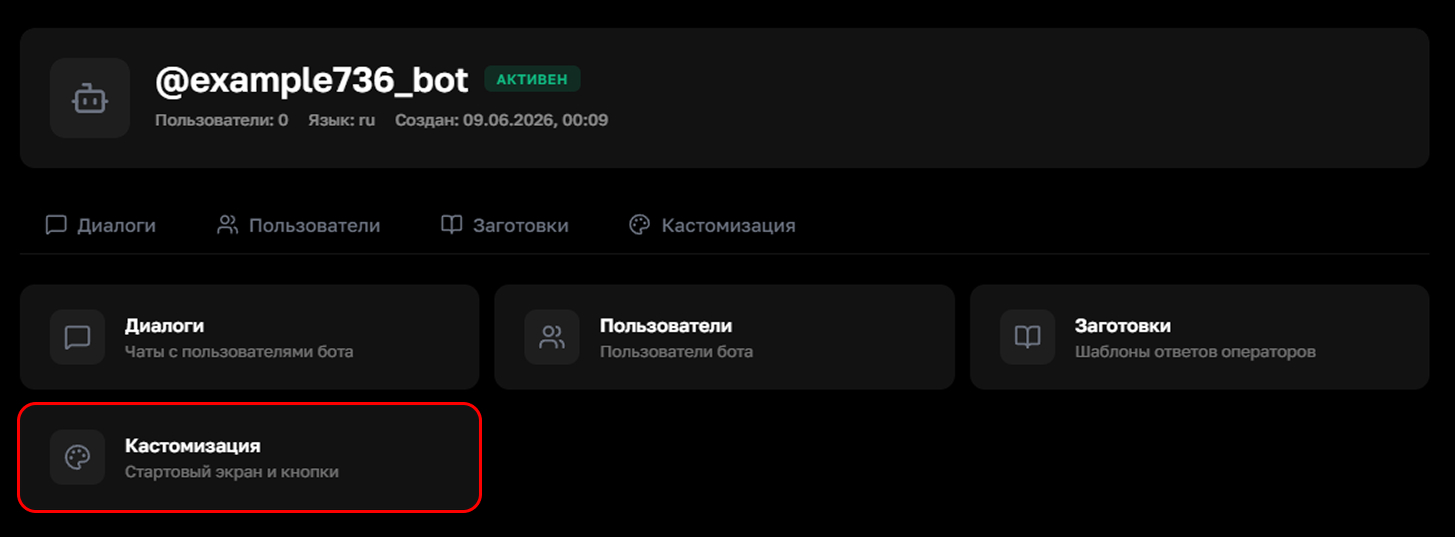
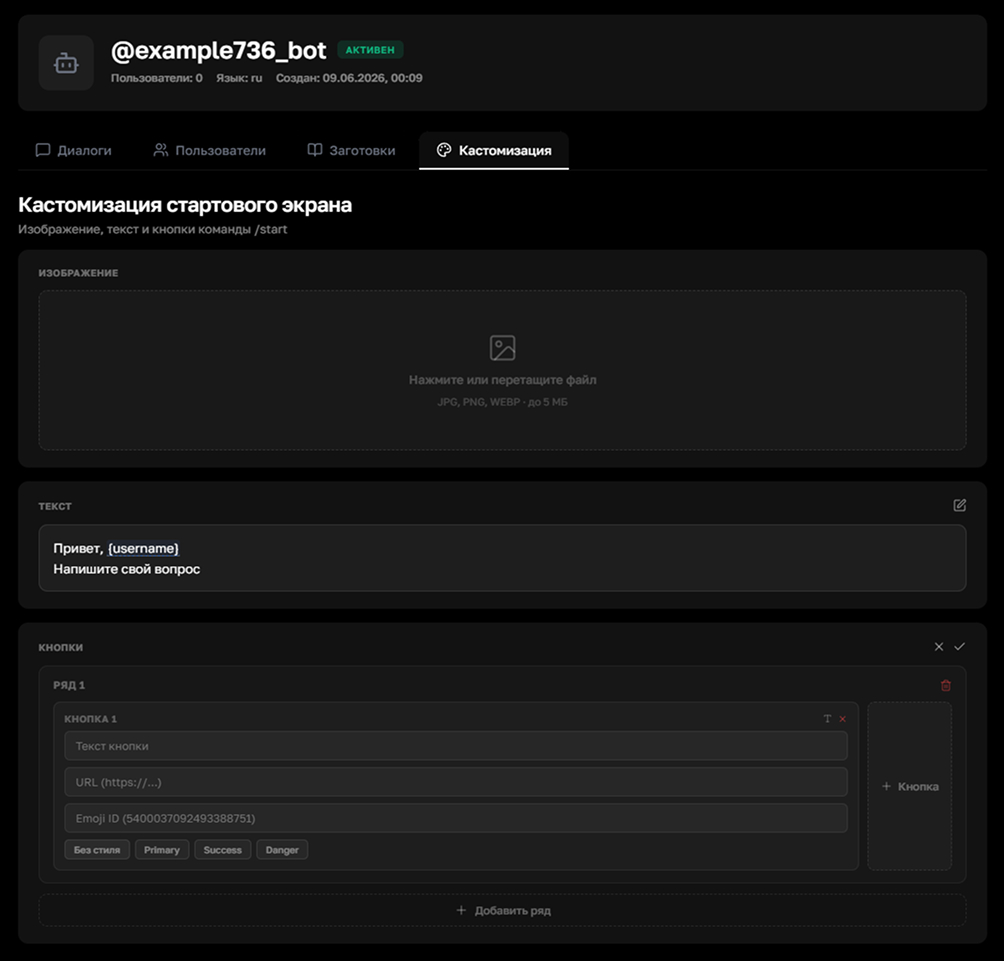
On the bot's page, go to the "Customization" section. Here you can upload an image, change the welcome text, and add buttons for the start screen. Buttons support links, premium emojis and style selection
Show screenshot
Show start screen settings
Step 6. Open dialogs
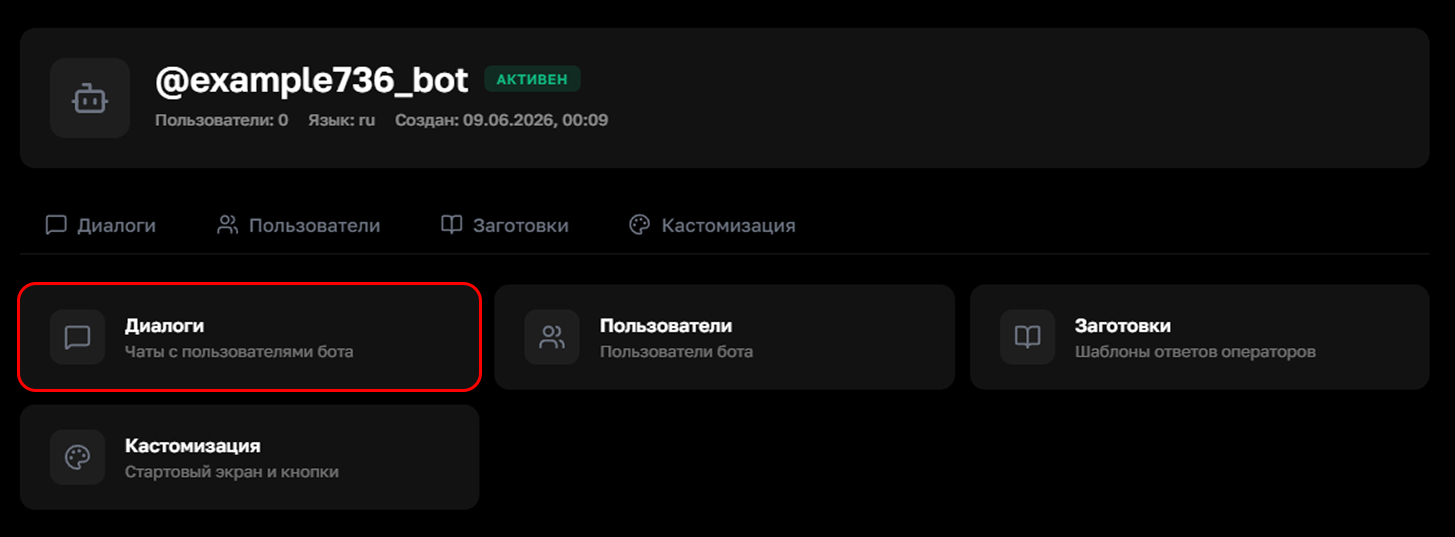
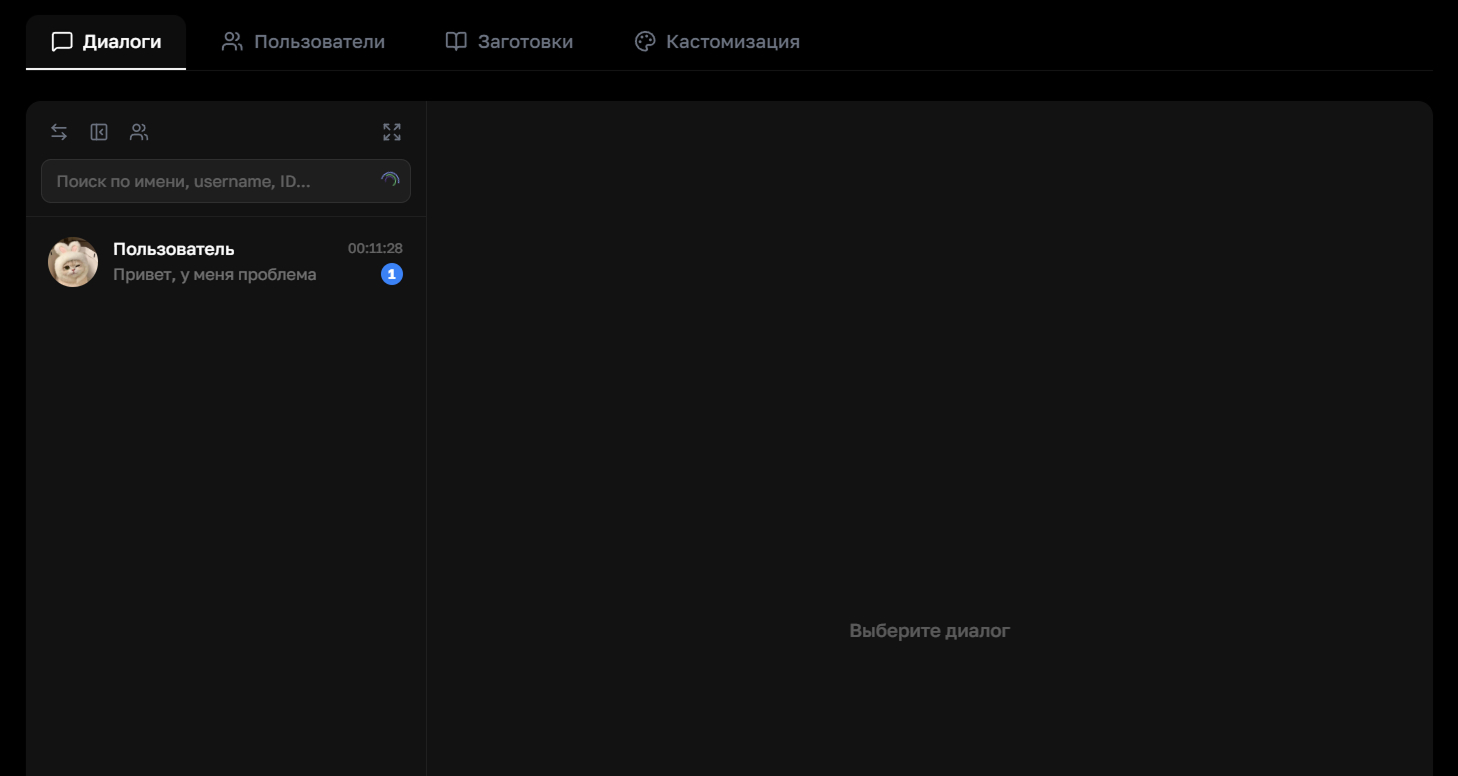
Go to the "Dialogs" section — here all incoming messages from the bot's users are displayed. Searching by name, username or ID lets you quickly find the chat you need
Show screenshot
Show chat list
Step 7. Reply to the user
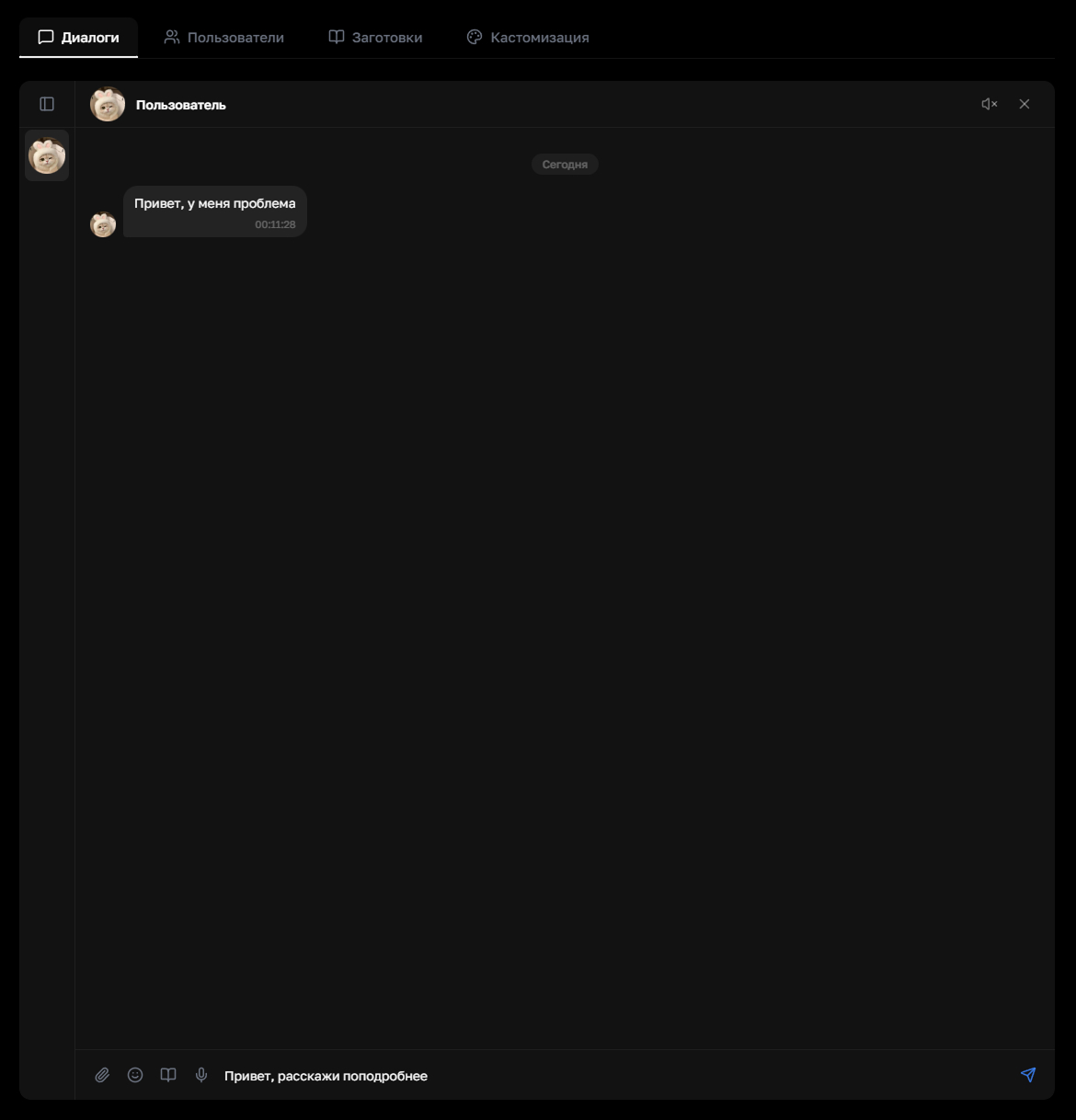
Click on the dialog you need and reply directly from the panel. You can attach files of any format, send voice messages and emojis
Show screenshot