Publishing Posts with Buttons
The "Posts" tool lets you publish messages with interactive buttons to Telegram channels directly from the control panel
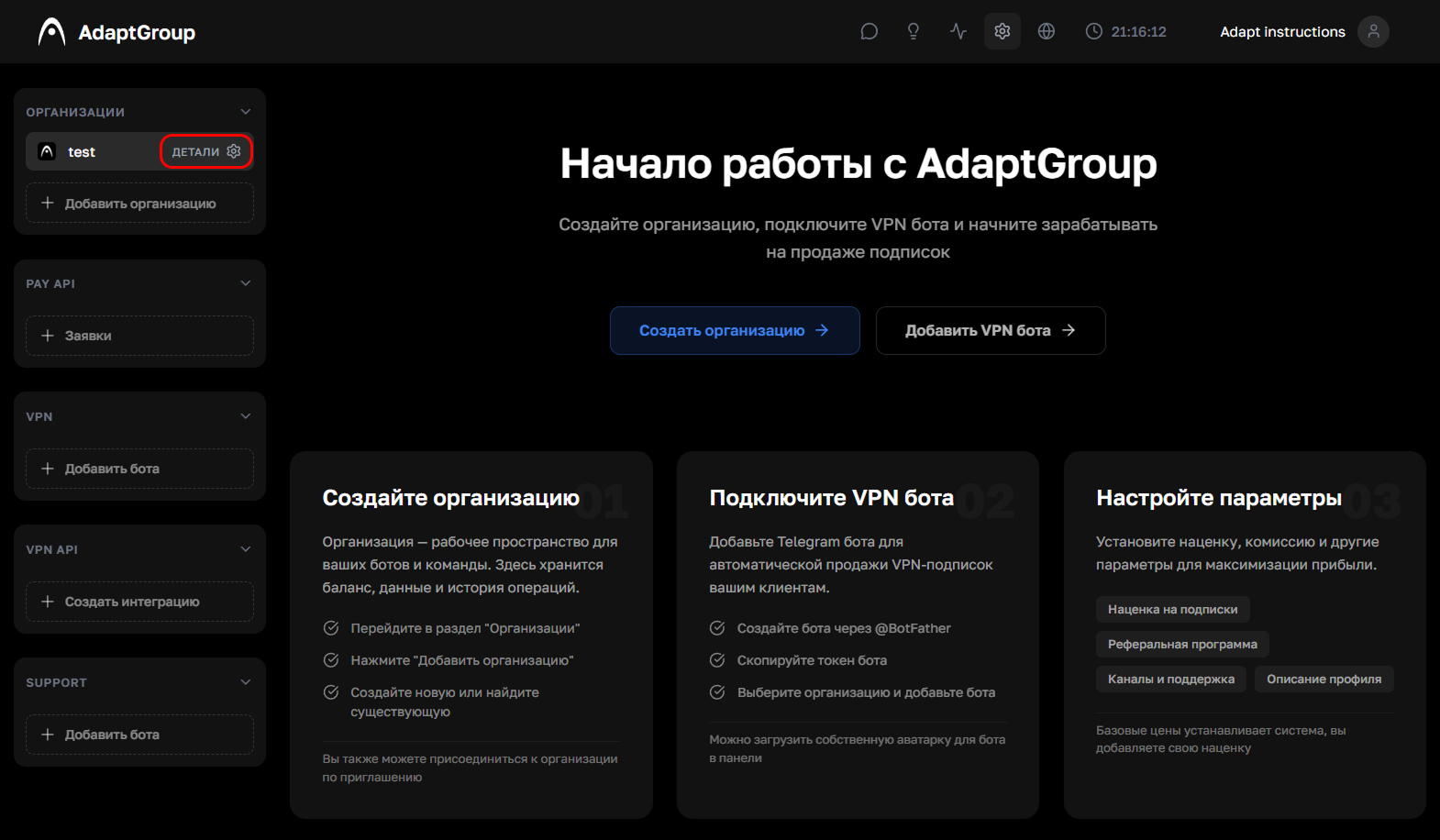
Step 1. Open the organization
In the left sidebar, next to the organization you need, click the "Details" button
Show screenshot
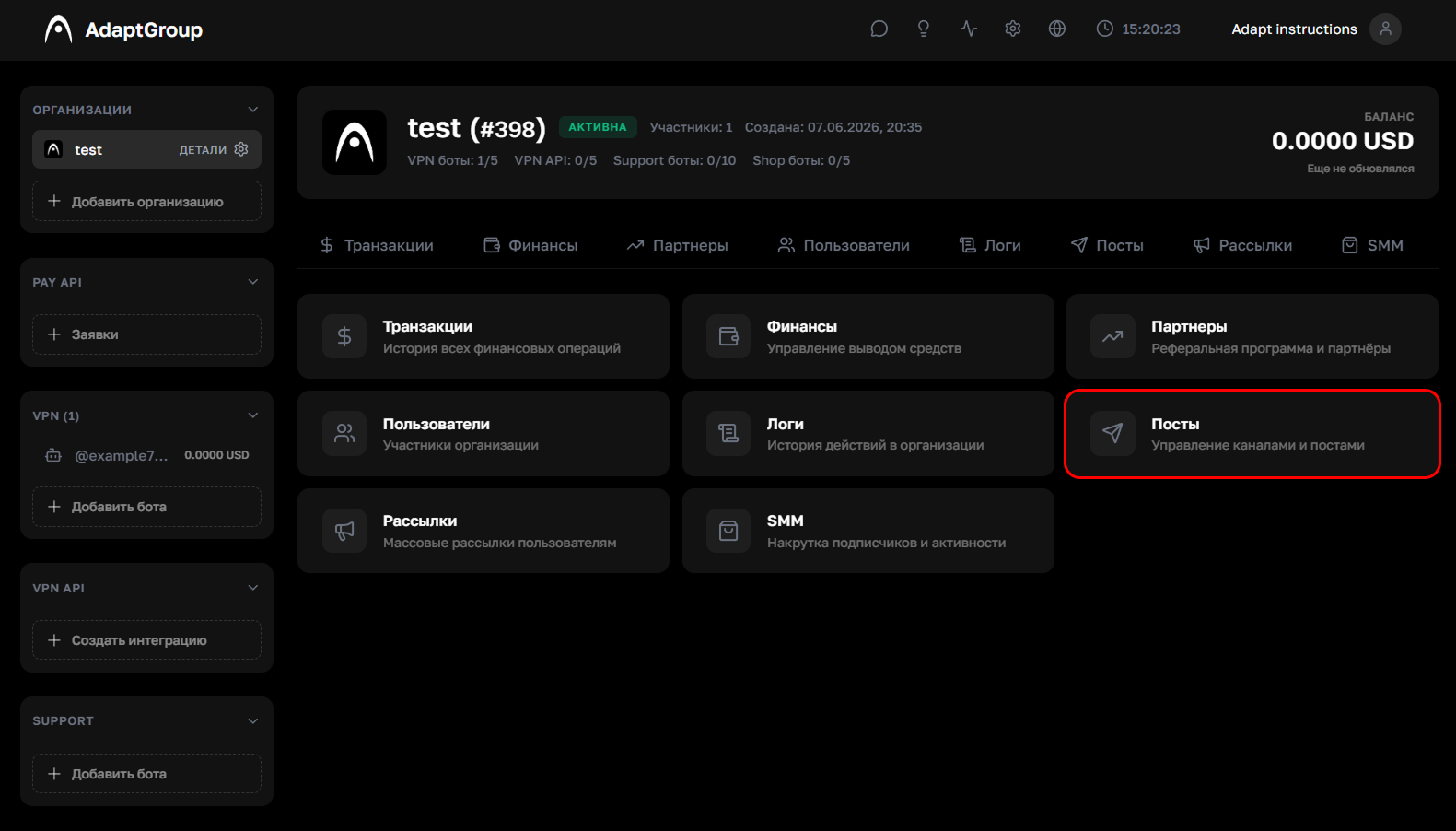
Step 2. Go to the "Posts" section
On the organization page, click on the "Posts" tile
Show screenshot
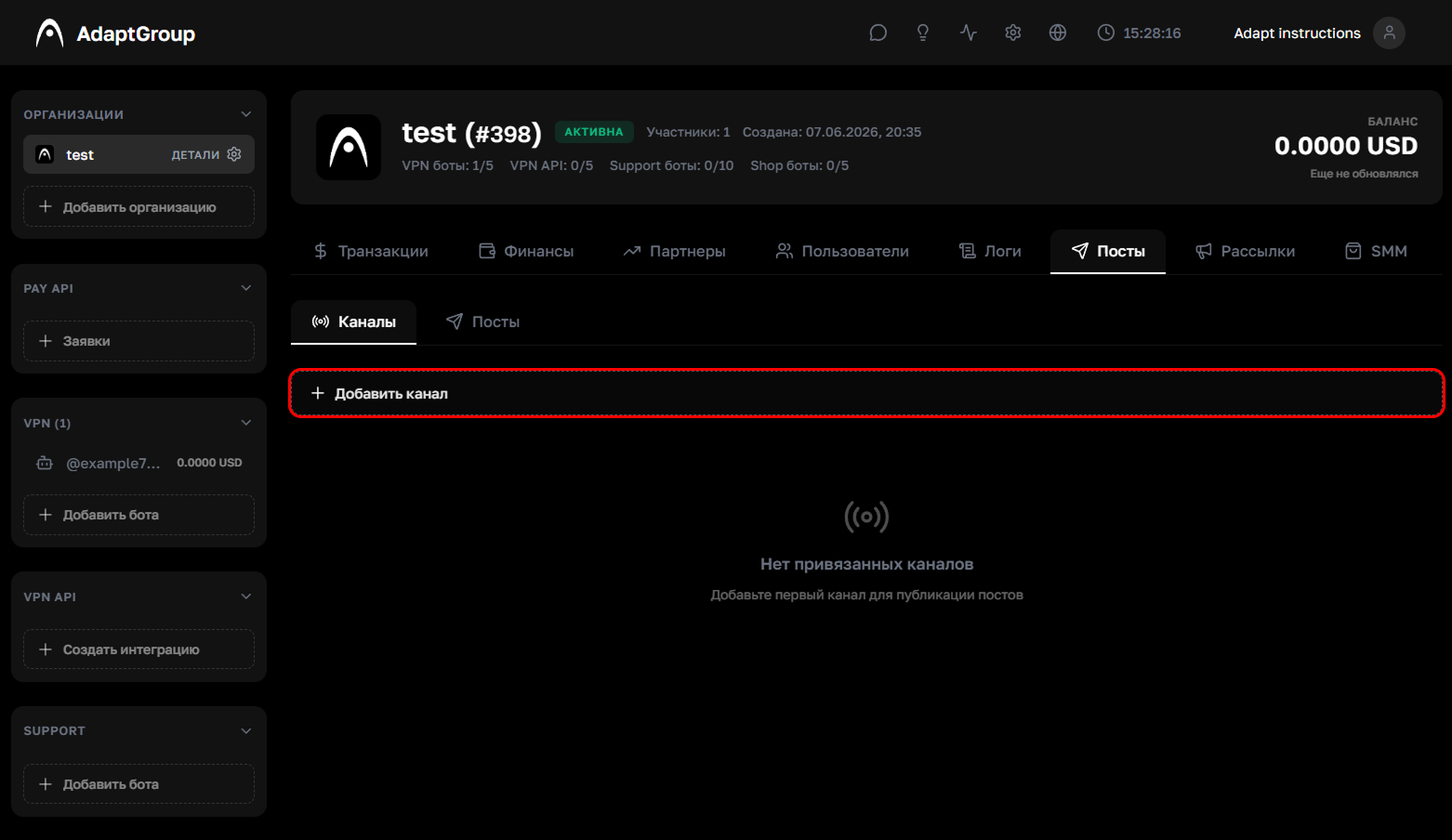
Step 3. Add a channel
Go to the "Channels" tab and click "+ Add Channel"
Show screenshot
Step 4. Enter the channel username
Add the special bot as an administrator of your channel, then enter the channel's username or ID and click "Generate Code"
Show screenshot
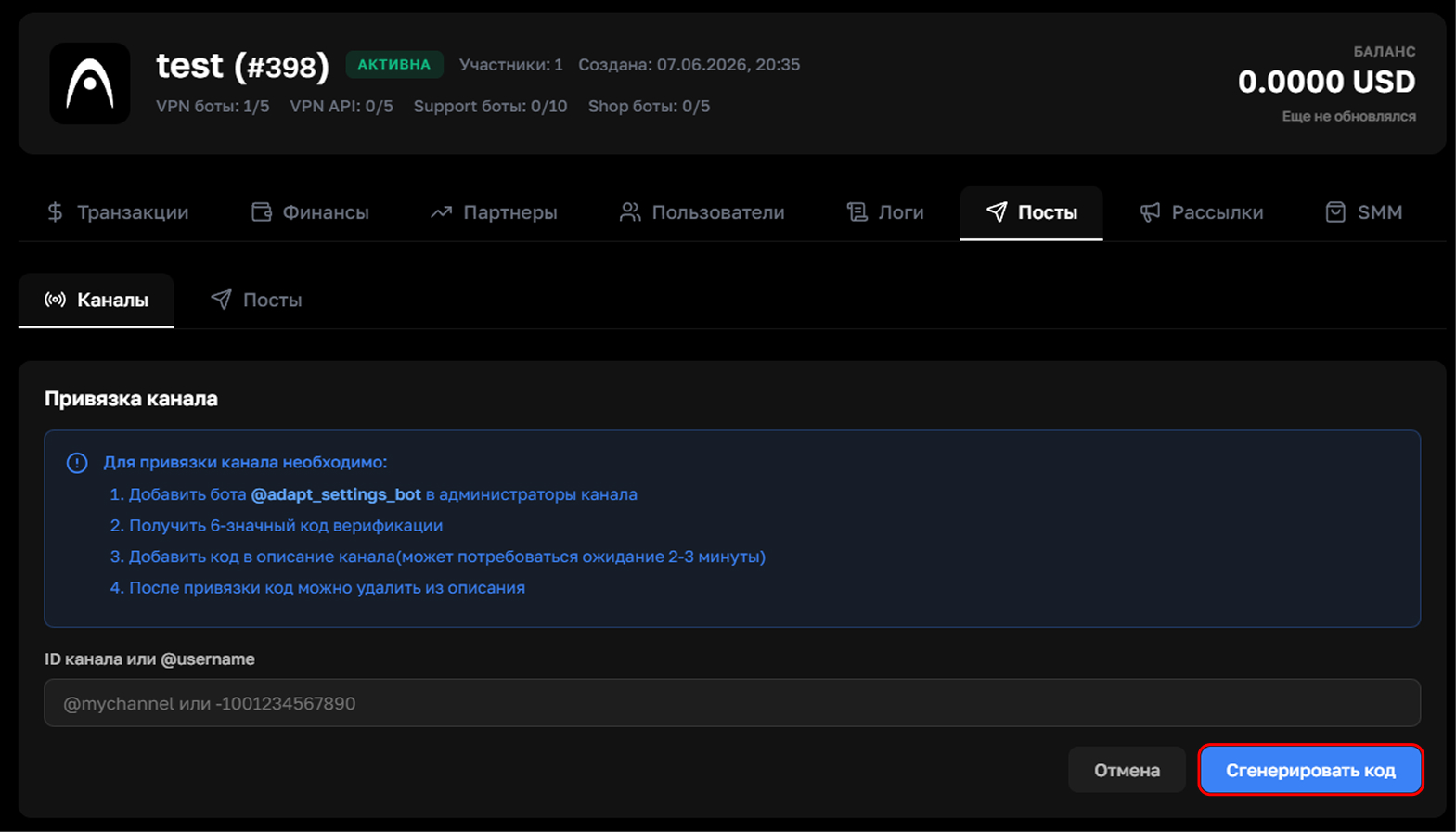
Step 5. Confirm the link
Copy the generated verification code and paste it into your Telegram channel's description. Then click "Verify and Link"
Sometimes you need to wait a couple of minutes after pasting the code — Telegram doesn't always update the channel description instantly
Show screenshot
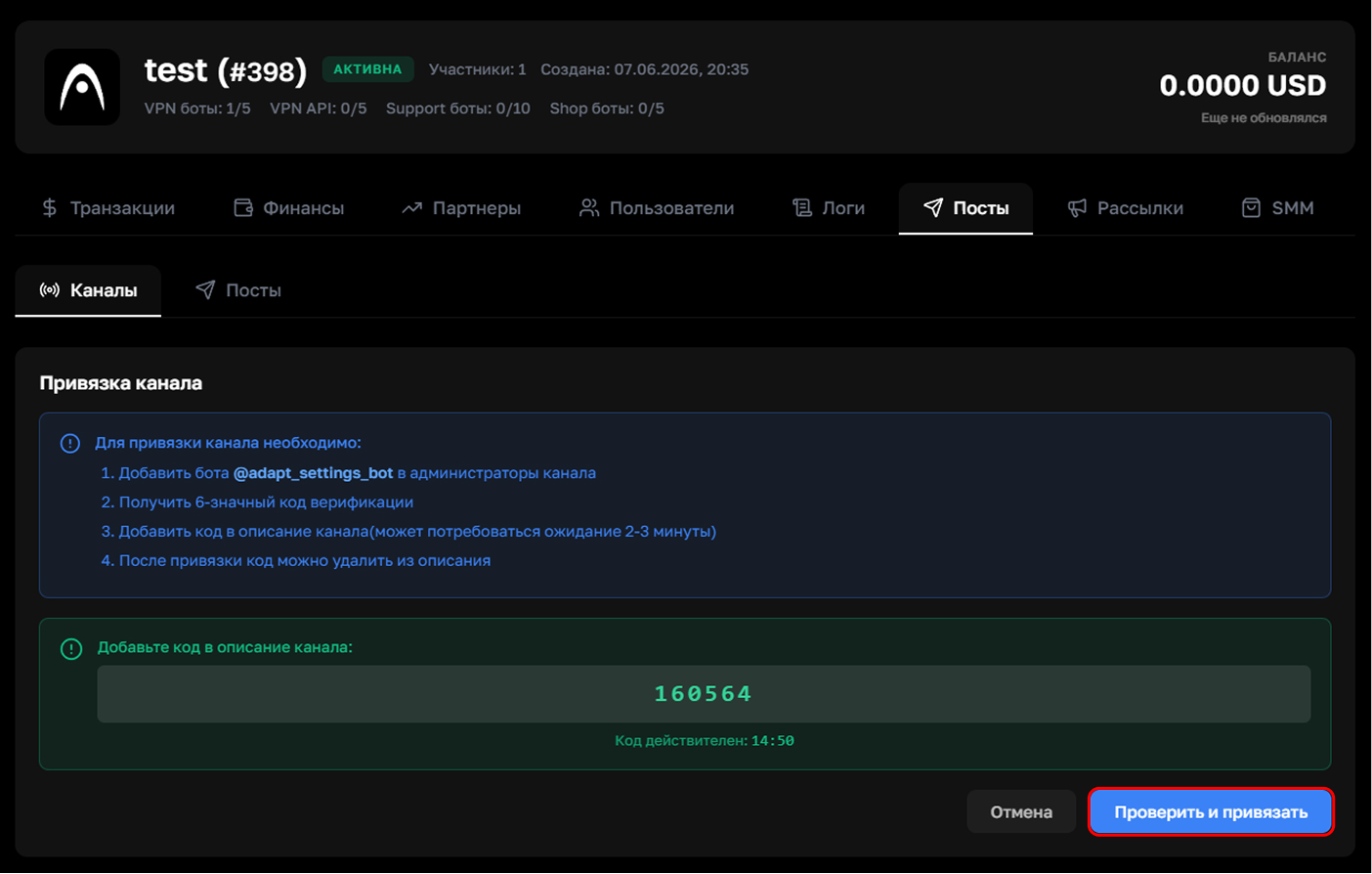
Step 6. Create a post
Go back to the "Posts" tab and click "+ Create Post"
Show screenshot
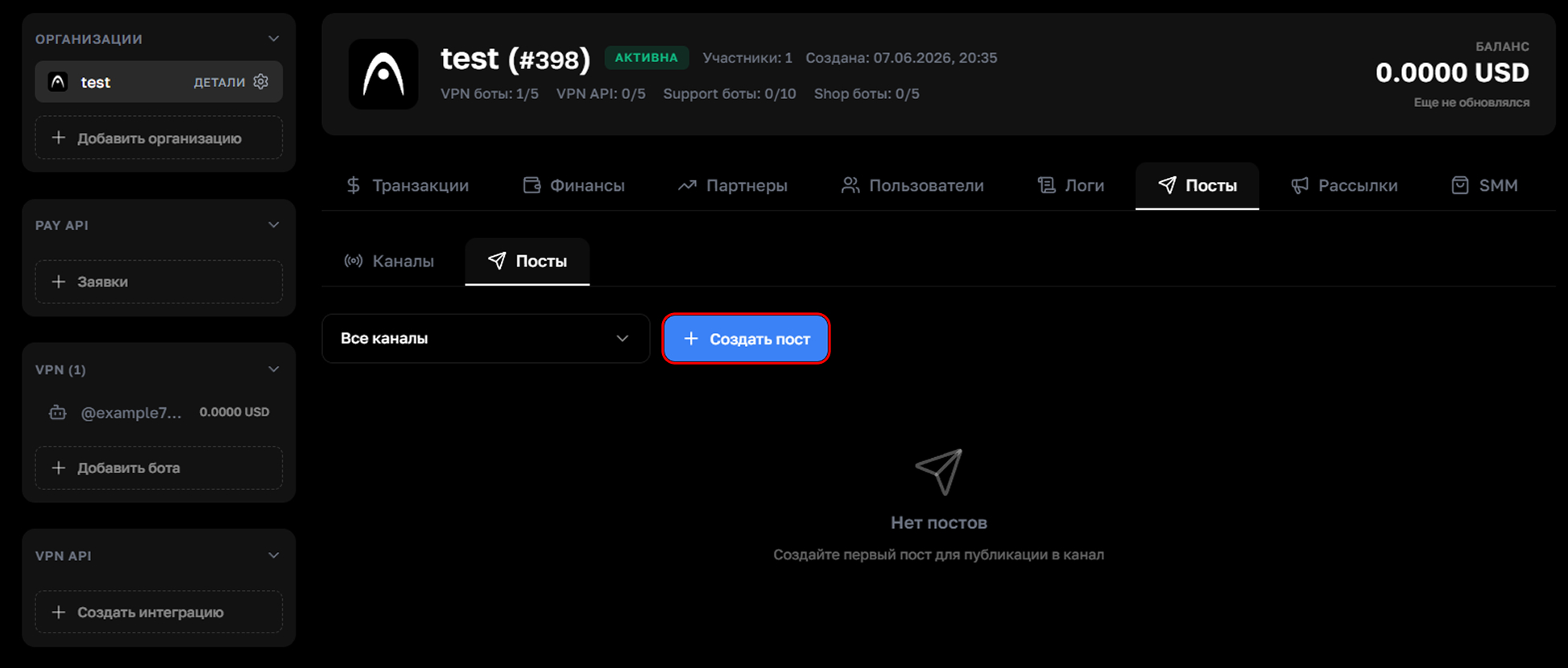
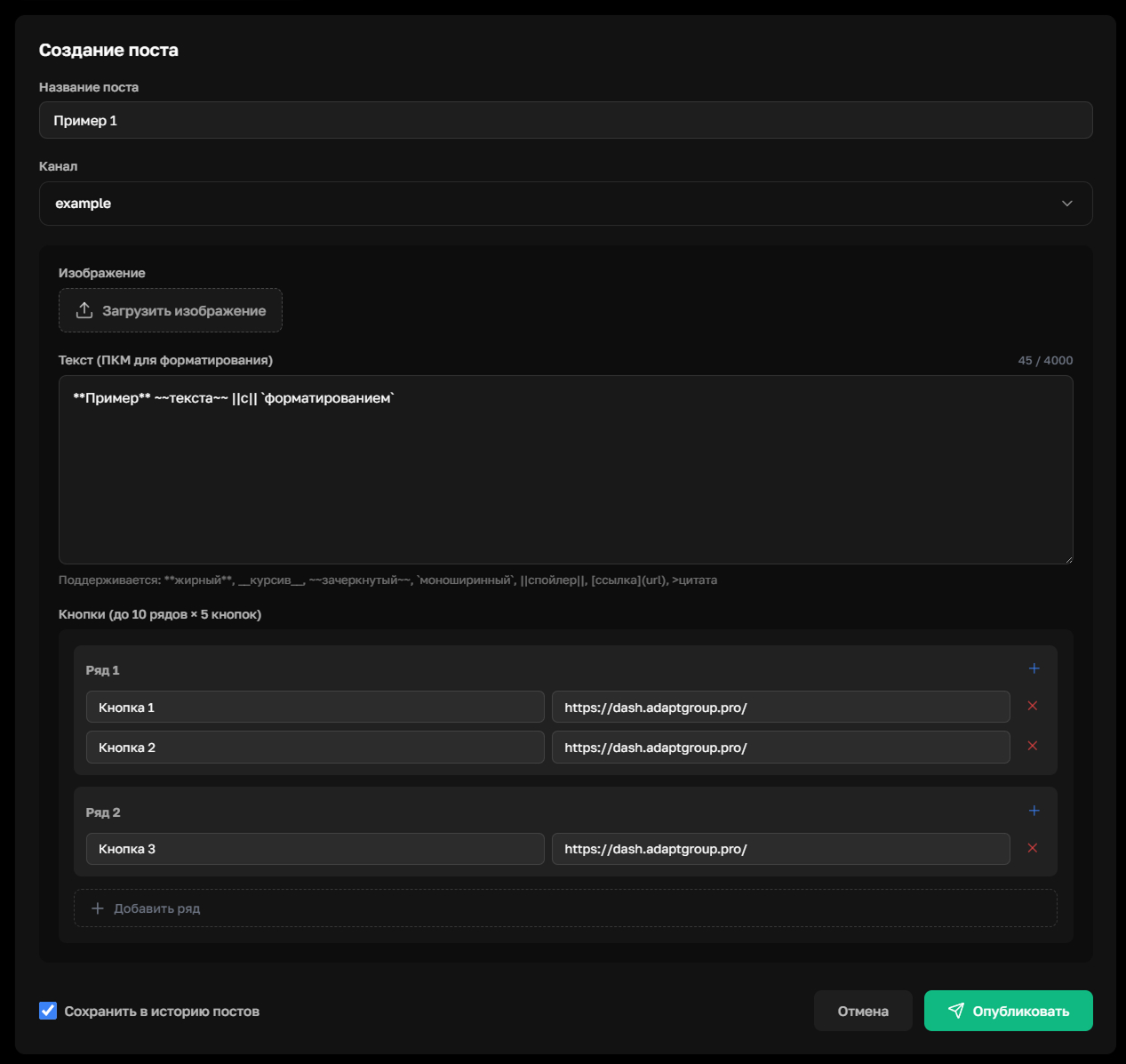
Step 7. Fill out the form
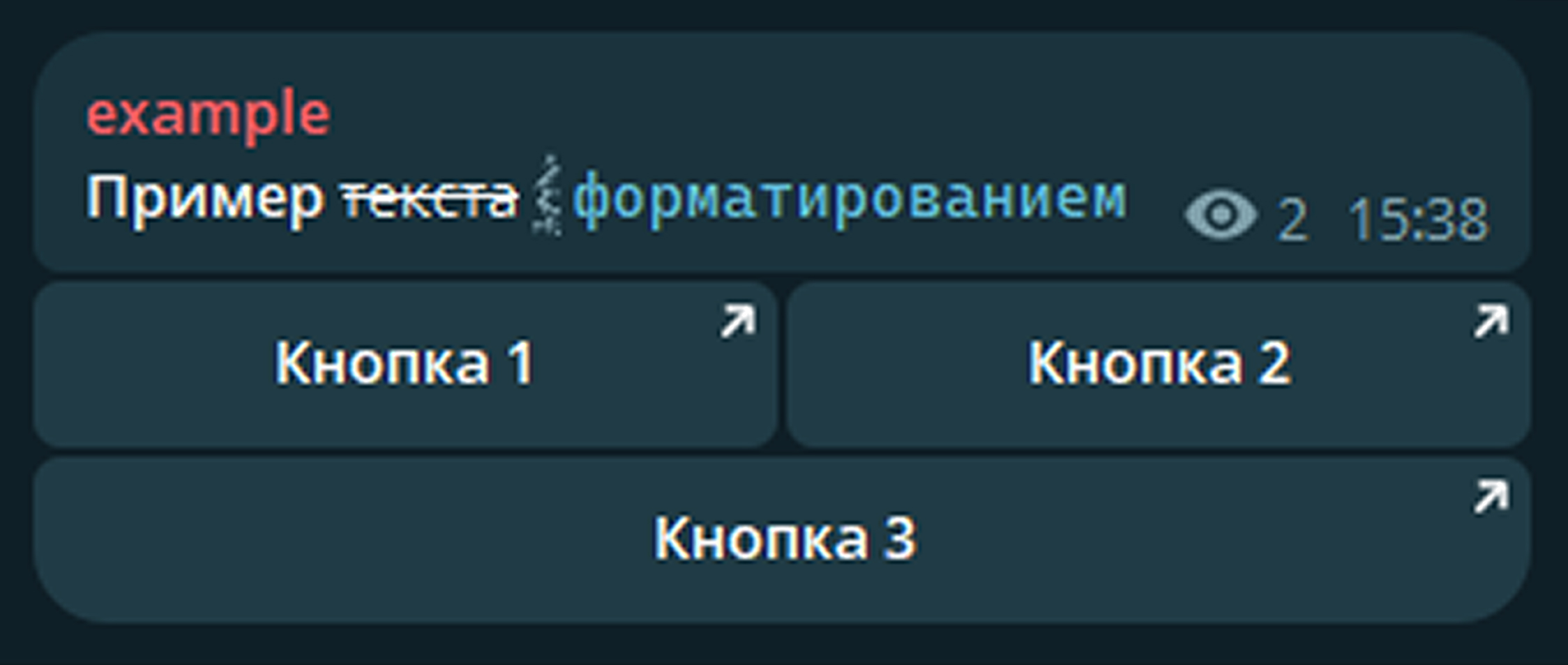
Enter a post title, choose a channel, add an image and the message text. Formatting is supported — bold, strikethrough, spoilers and monospace code. Add rows of interactive link buttons if needed
When everything is ready, click "Publish"
Show screenshot
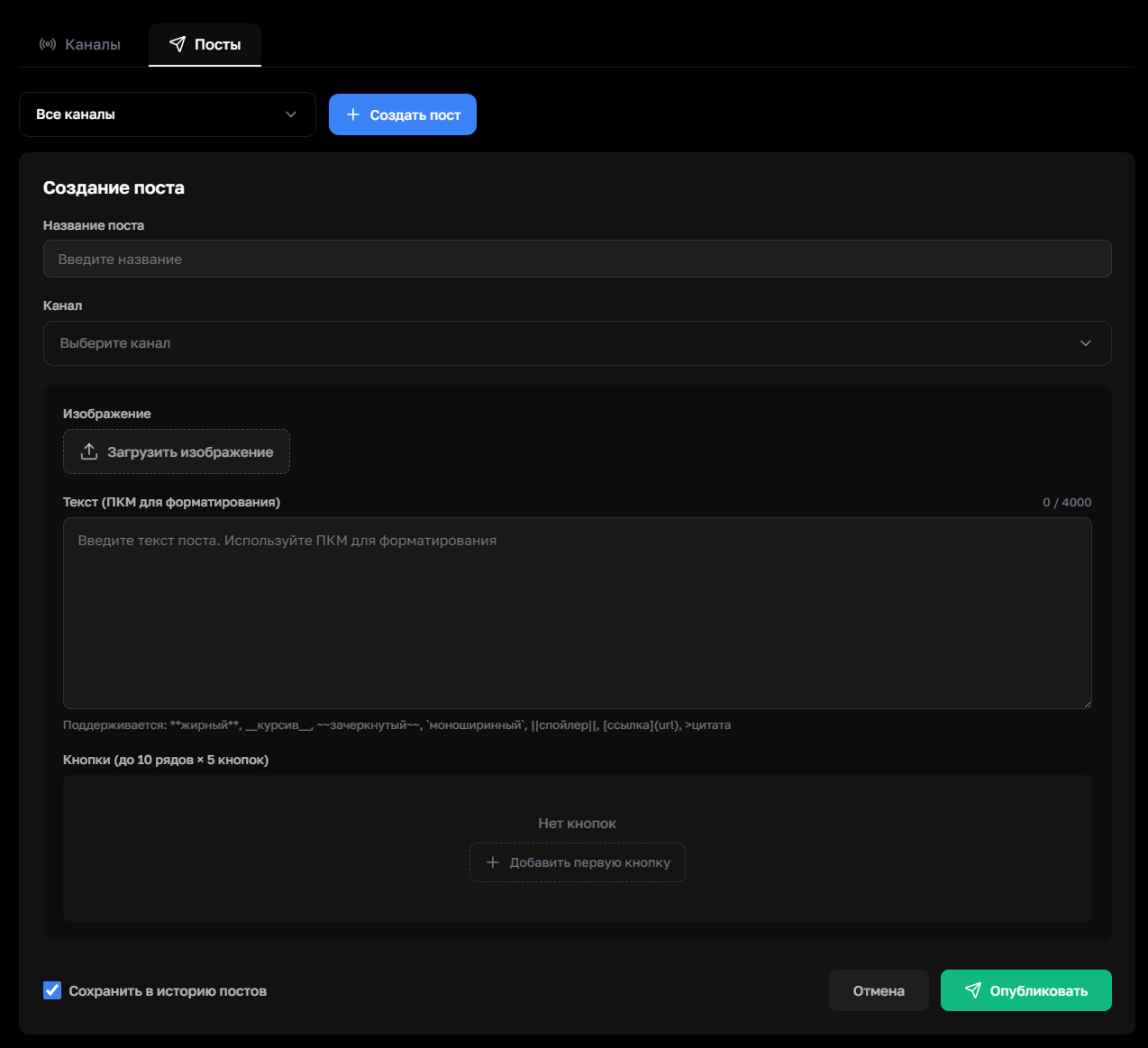
Show a filled-out example
Show how the post looks in the channel
Step 8. Managing posts
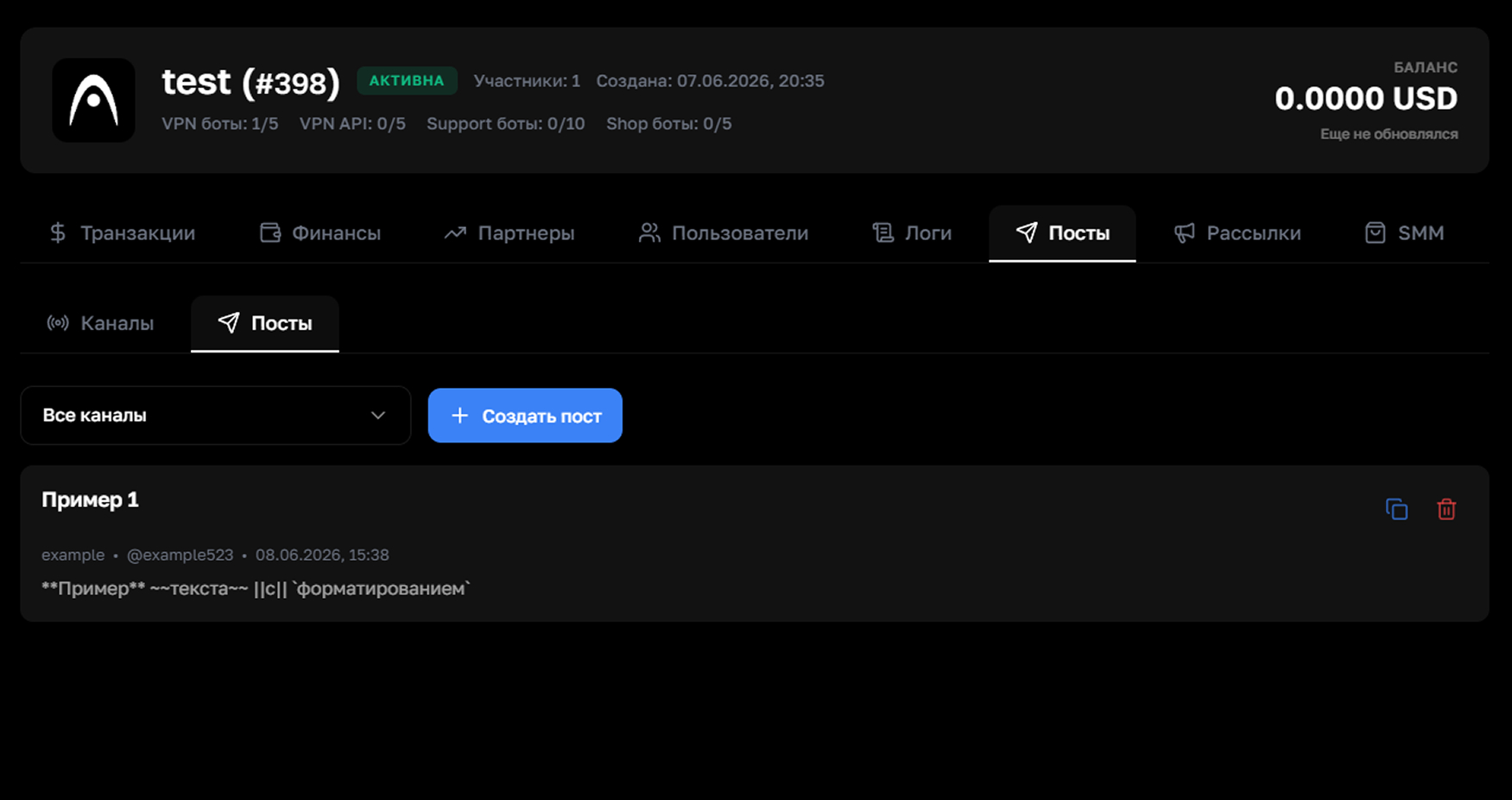
After publishing, the post will appear in the list on the "Posts" tab. Each card can be copied or deleted
Show screenshot