Bot Broadcasts
Broadcasts let you send a message to all or selected users of a bot. You can add text, media files and interactive buttons
Step 1. Open the organization
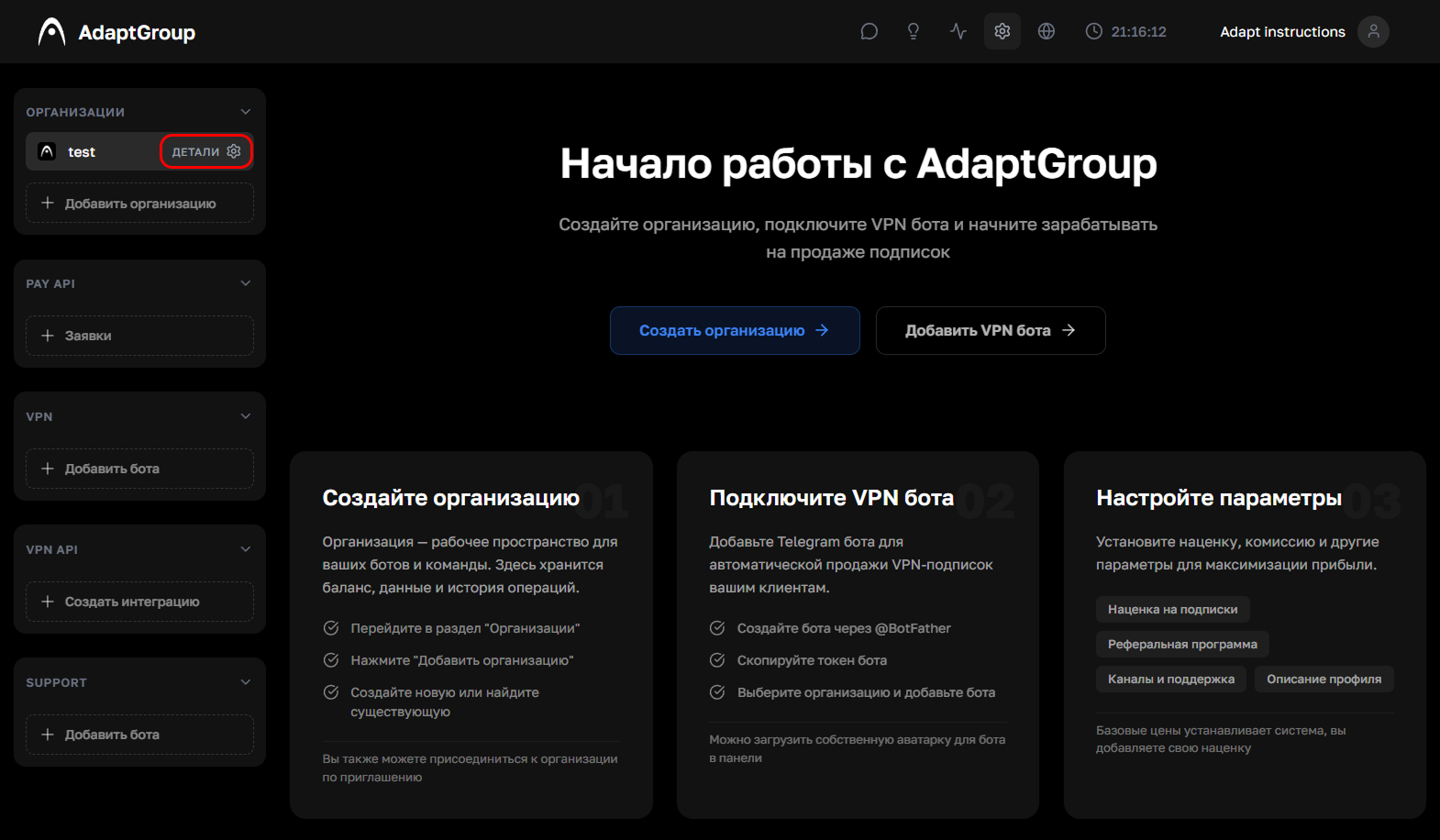
In the left sidebar, next to the organization you need, click the "Details" button
Show screenshot
Step 2. Go to the "Broadcasts" section
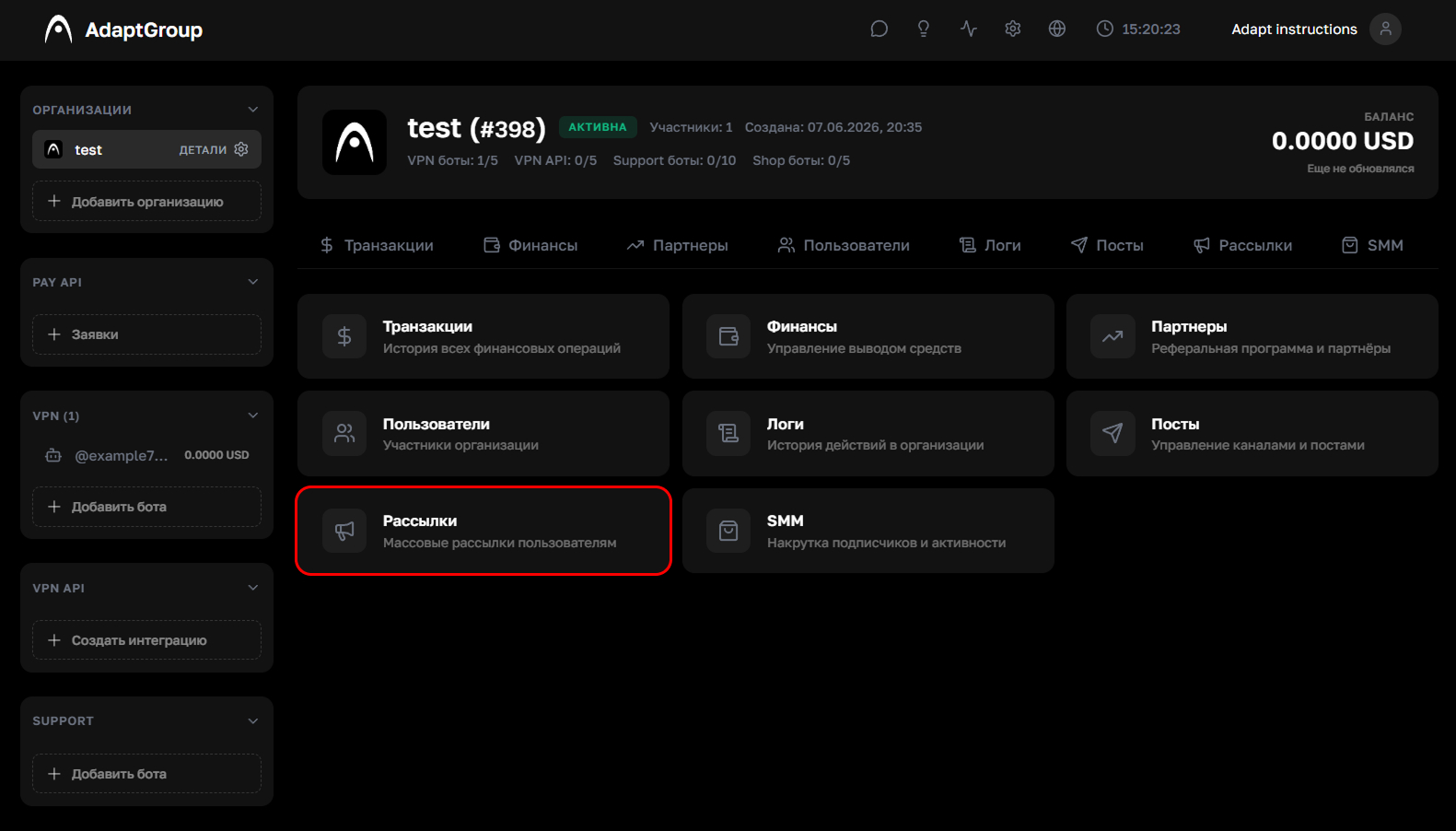
On the organization page, click on the "Broadcasts" tile
Show screenshot
Step 3. Create a broadcast
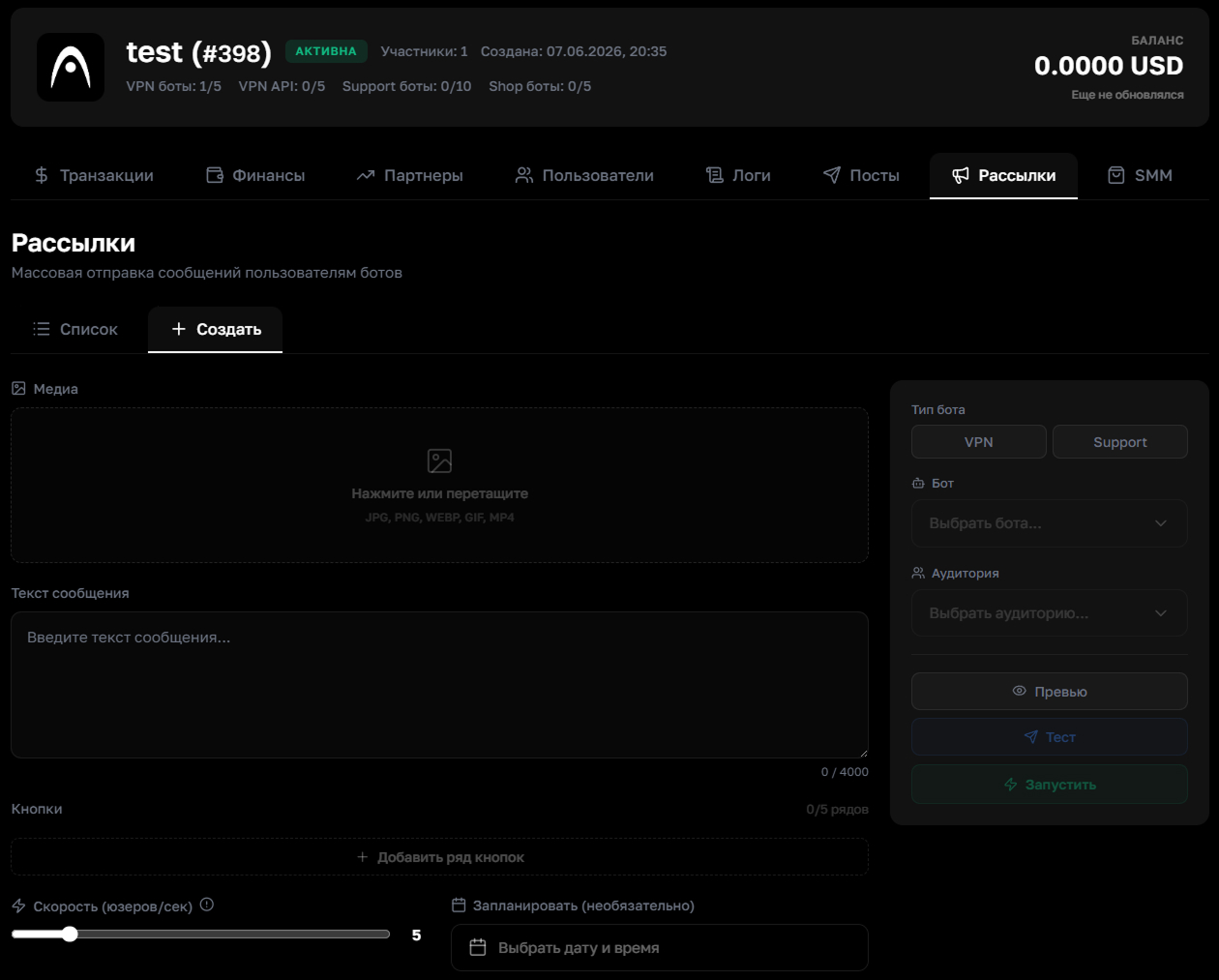
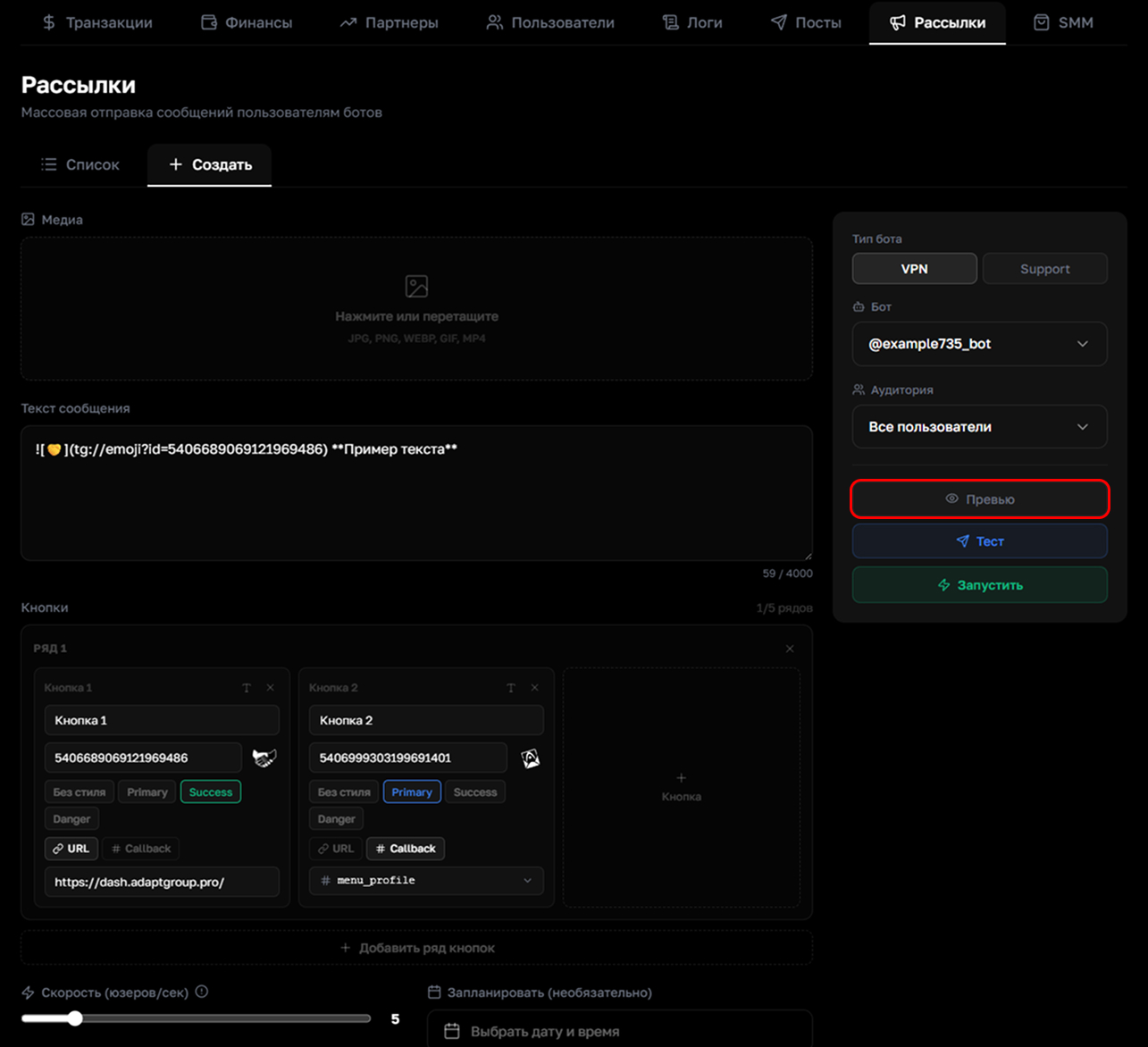
Go to the "Create" tab. On the left side of the page, compose your message — upload a media file and enter text (up to 4000 characters). Add interactive buttons if needed
Two types of button actions are available: a link to a website, or a callback trigger that redirects the user to a specific section of the bot
The text supports formatting: **bold**, __italic__, ~~strikethrough~~, `monospace`, ||spoiler||, [link](url), >quote
Show screenshot
Step 4. Choose a callback for the button
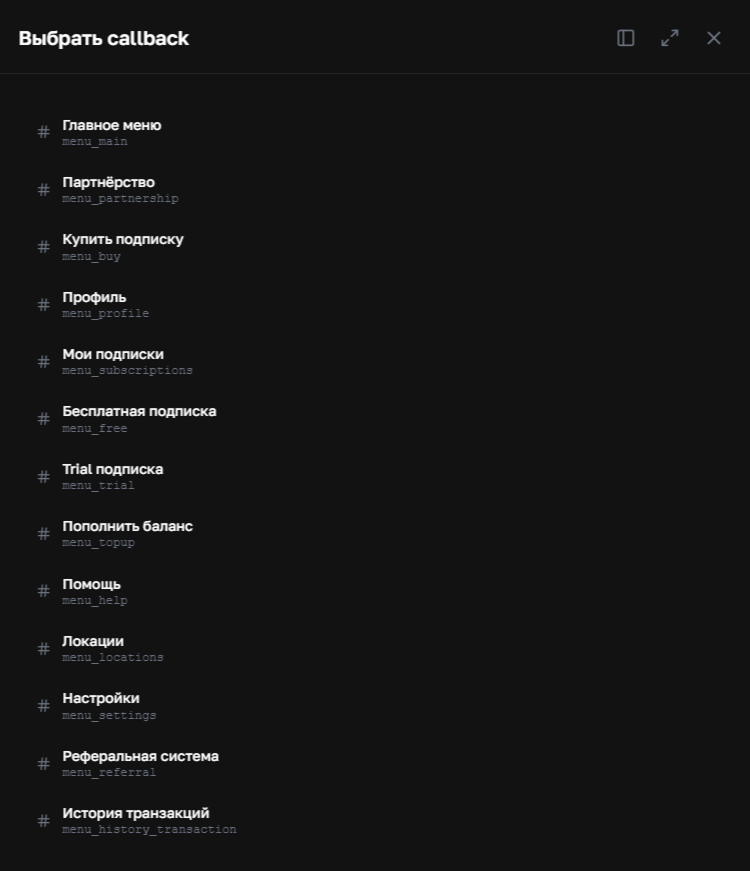
If you're adding a button with a callback trigger, click on it and choose the desired action from the list — for example, main menu, user profile, subscription purchase or transaction history
Show screenshot
Step 5. Configure the audience and sending parameters
In the right panel, choose the bot type (VPN or Support), the specific bot, and the target audience of recipients. You can also adjust the sending speed and schedule the broadcast for a specific date and time
Take your bot's activity into account when choosing the sending speed. For active bots with a large number of users, we don't recommend setting 30 messages per second — Telegram's limits will be exhausted and users won't be able to use the bot until they're reset
Step 6. Check the broadcast before sending
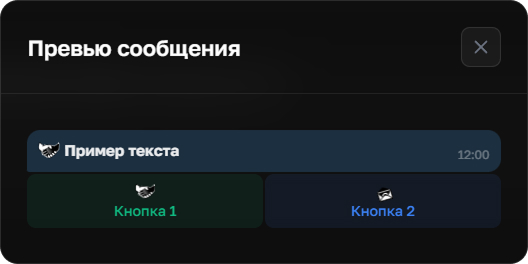
Click the "Preview" button to see how the message will look. A window will open showing the text and buttons in a Telegram-style visual representation
Show screenshot
Show screenshot
Step 7. Test send
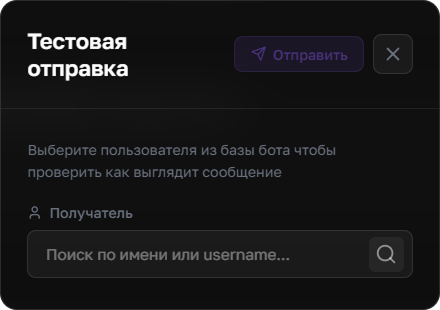
Before launching the broadcast, you can send a test message to a specific account. Click the "Test" button, find the user you need by name or username, and click "Send"
Show screenshot
Always check your broadcast using preview and a test send before launching — this way you'll make sure the text, buttons and media file display correctly