Changing Your Password
If you're already logged into your account and want to change your password, you can do this through your profile settings
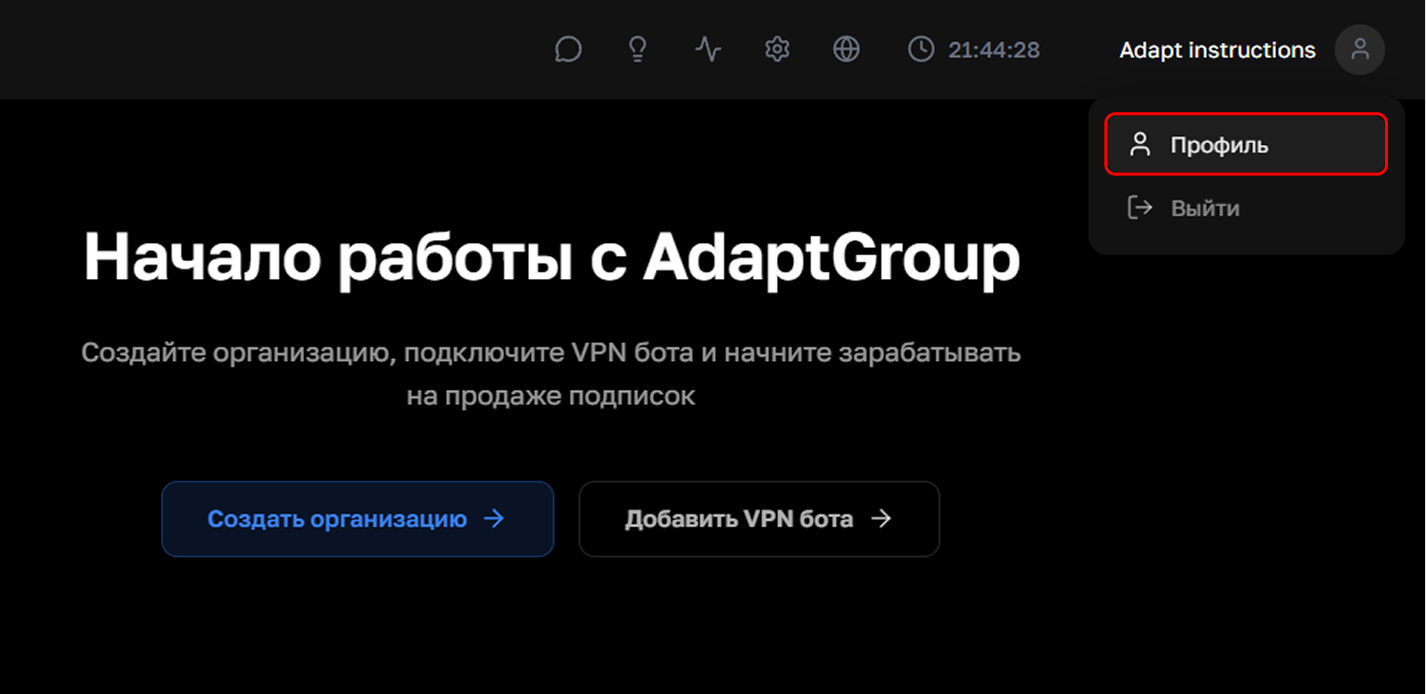
Step 1. Open your profile
Click on the profile icon in the top right corner of the panel and select "Profile"
Show screenshot
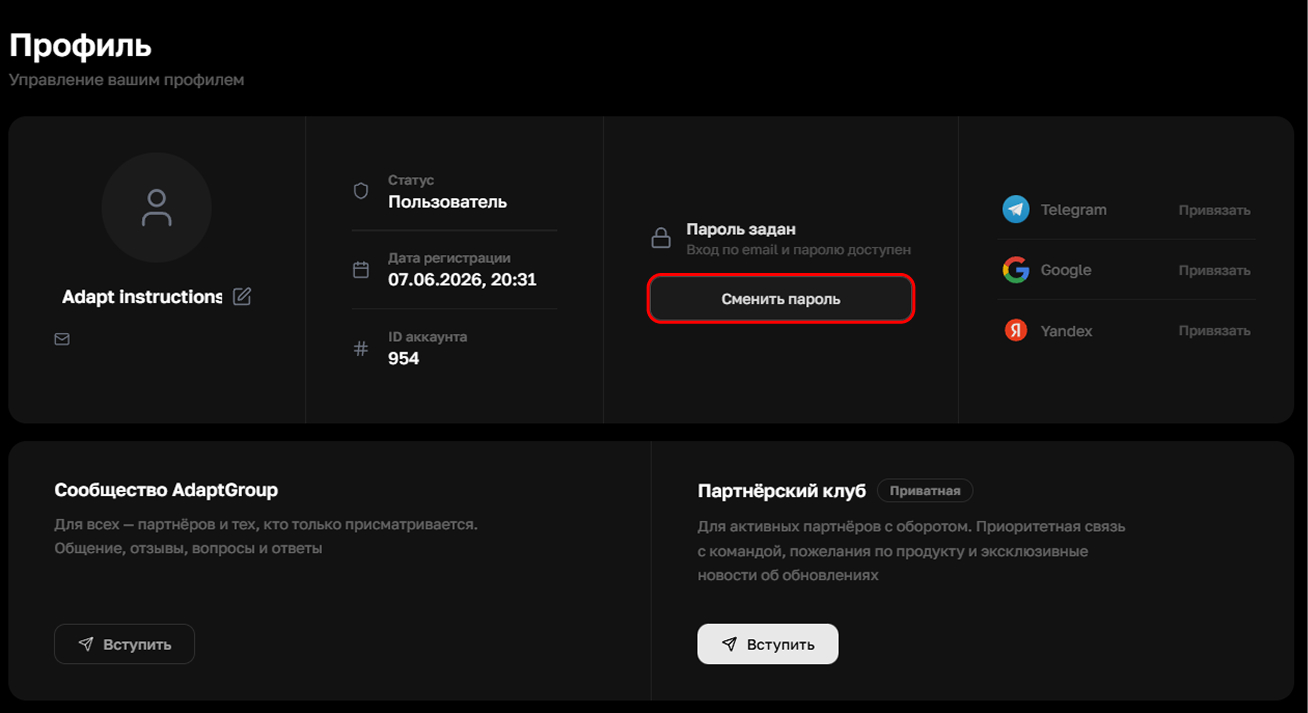
Step 2. Go to change password
On the profile page, find the "Change Password" button and click on it
Show screenshot
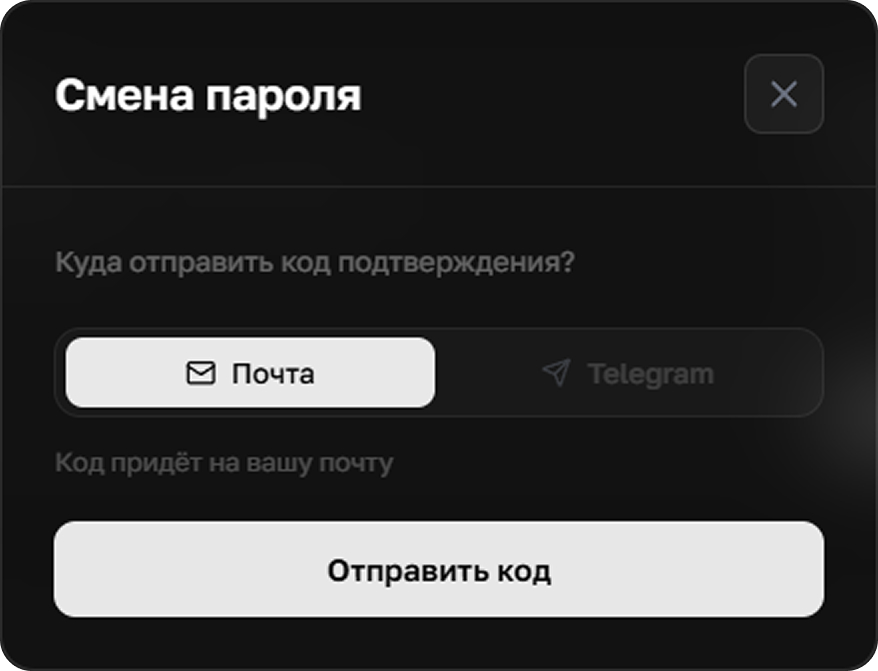
Step 3. Choose how to receive the code
A window will open. Choose where it's more convenient for you to receive the confirmation code — by email or in Telegram (to send the code to Telegram, you must have a linked Telegram account). Then click "Send Code"
Show screenshot
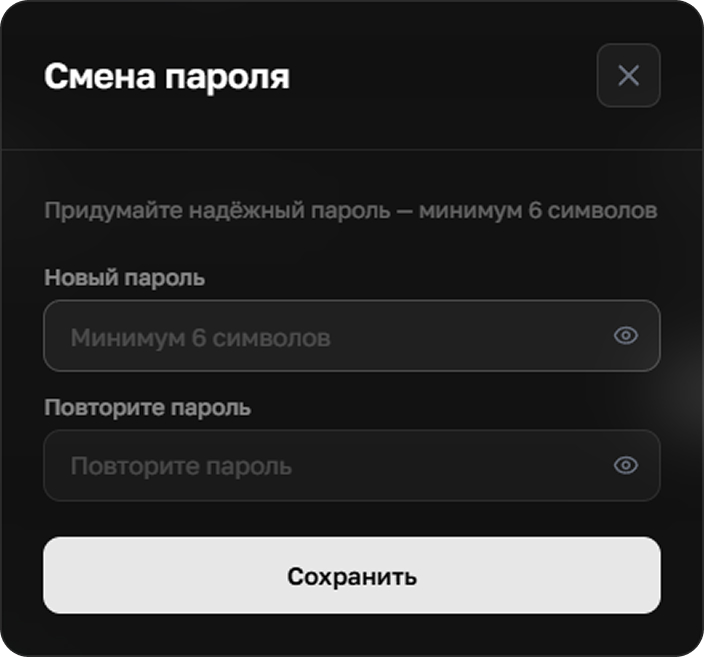
Step 4. Enter a new password
Enter the received code and come up with a new password of at least 6 characters, enter it in both fields and click "Save"
Show screenshot
Tip
Use a combination of letters, numbers and symbols — such a password will be more secure